Guide for small business
How to do your BAS with GigTics
A step-by-step guide for sole traders and small businesses, like cleaners, tradies and creators: from sign-up to lodging, with a picture of every step.
The pictures show a made-up cleaning business.
Before you start
Have these ready. It makes the rest quick.
- Your ABNAnd how often you lodge your BAS (most small businesses lodge every quarter). GigTics prepares BAS figures for businesses registered for GST.
- Your incomeThe invoices you sent your clients, or a record of what each client paid you.
- Receipts and bills for your costsSupplies, tools, equipment, your phone, fuel and anything else you buy for the business. Photos, PDFs and emailed receipts all work. No receipts? See step 6.
- Your business-use percentagesFor anything you also use privately, like your car and phone: the share you use for work.
Step 1: Set up your business
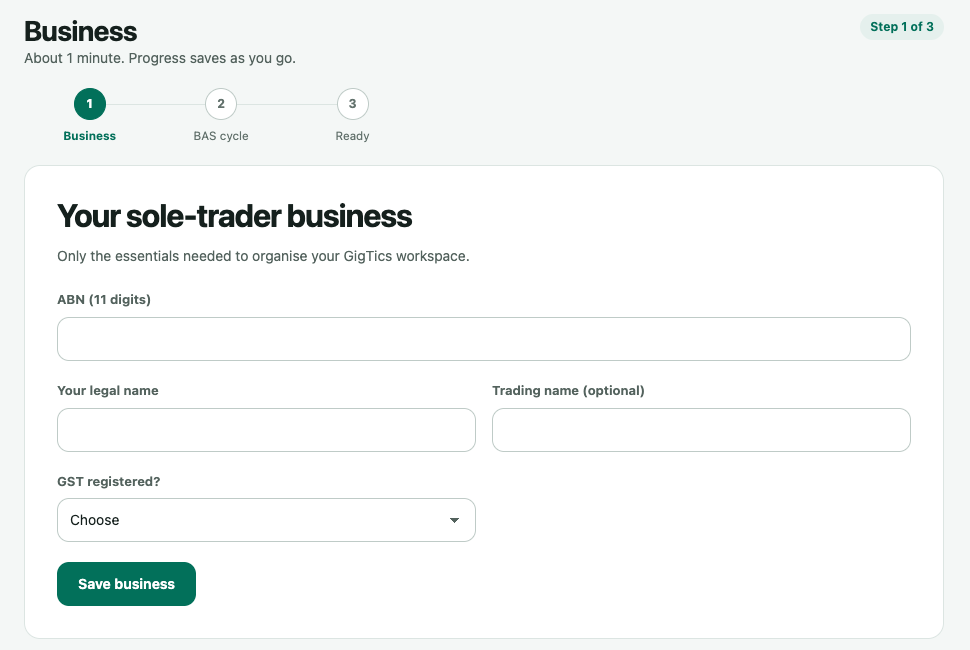
After you sign up, GigTics asks three short things. It takes about a minute.
- Business: your ABN, your legal name, your trading name if you have one, and whether you are registered for GST. GigTics checks your ABN with the Australian Business Register and fills in what it can.
- BAS cycle: how you account for GST (Cash or Non-cash) and how often you lodge (Quarterly or Monthly). Choose the cycle the ATO set for you.
- Ready: check your details and press Finish onboarding.
Add your trading name if you use one. GigTics uses your business names and ABN to recognise the invoices you send.
Step 2: Set your business use
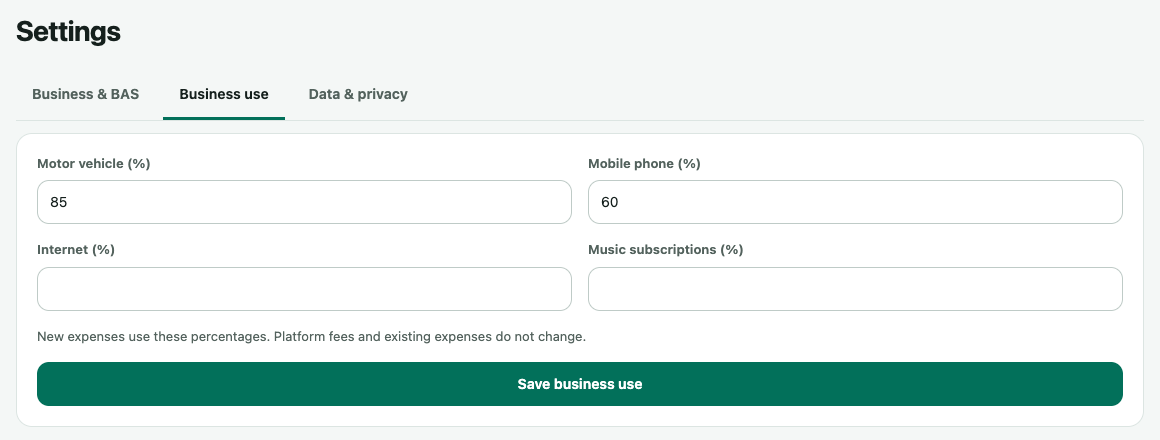
Open Settings, then Business use, and enter the percentage you use your car (Motor vehicle), phone and internet for work. Press Save business use. GigTics uses these for every new cost.
- Always counted in full: accountant fees, business insurance, licences and permits, subcontractors, bank and card fees, advertising, and tolls and parking.
- Asked each time: other costs, like equipment, supplies, cleaning products, rent and software. Enter 100 if it was only for work.
Step 3: Add your income
Upload the invoices you send
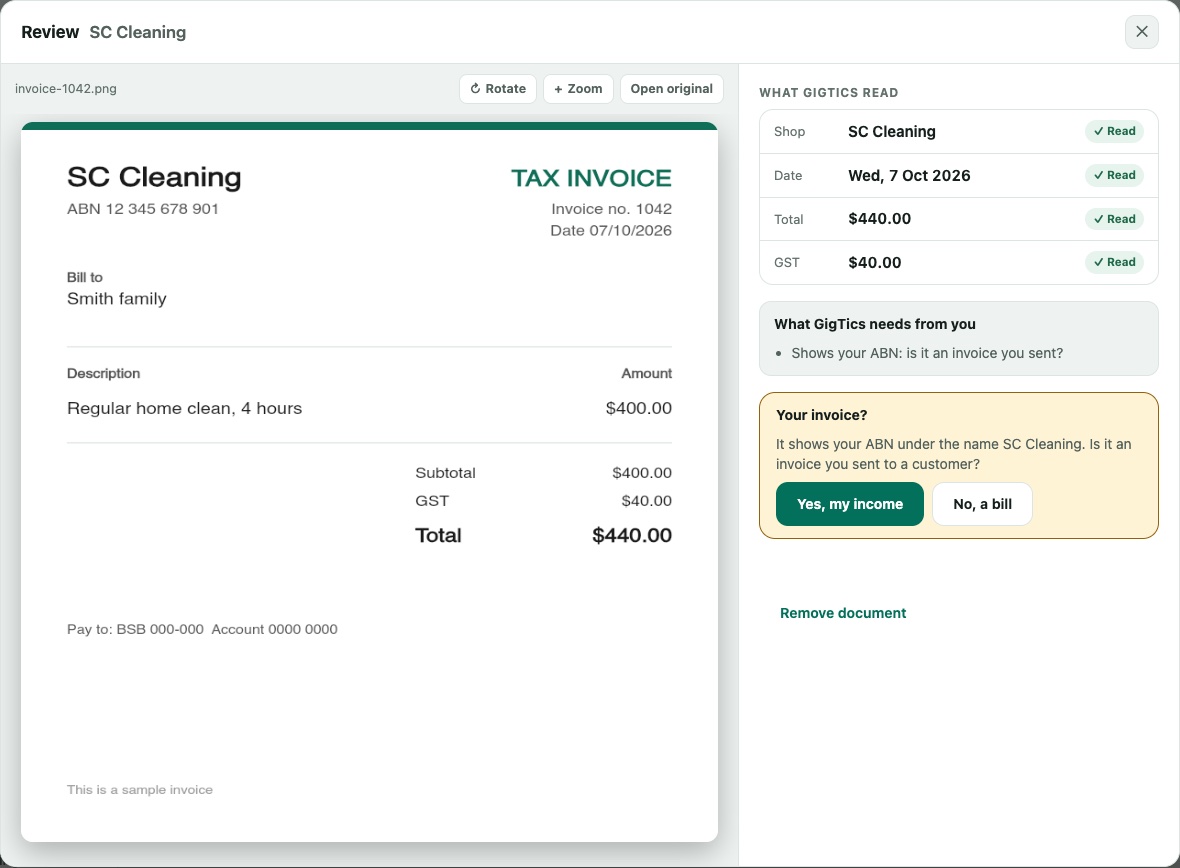
Best if you invoice clientsDrop your invoices on Add. GigTics recognises your own invoices by your business name or ABN and adds them as income. If it sees your ABN under a name it doesn't know, it asks Your invoice?: press Yes, my income, or No, a bill if it's a bill you were sent.
Type it in with Add manually
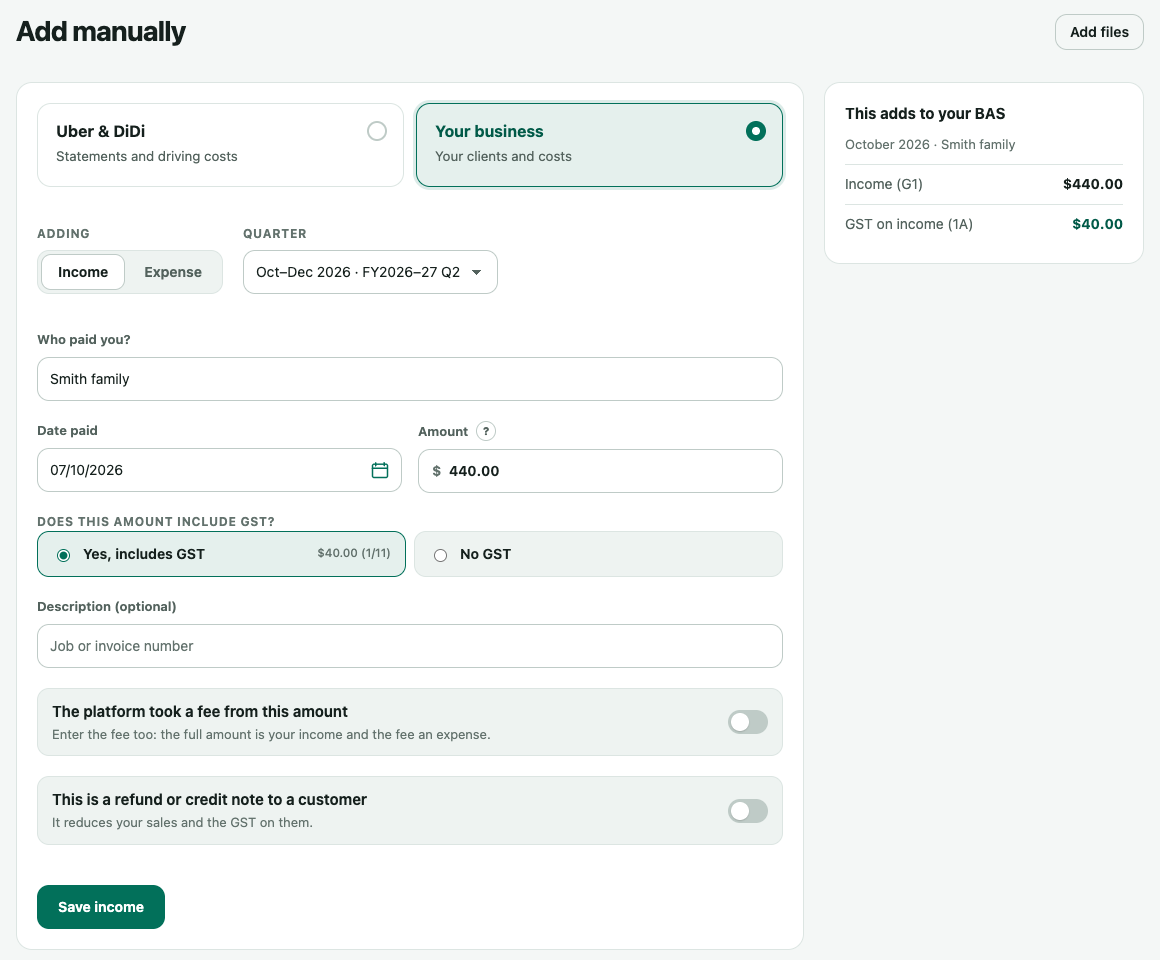
Best for payments without an invoice- On Add, press + Add manually. At the top, choose Your business, then Income and the quarter.
- Enter Who paid you?, the date paid and the amount, and answer Does this amount include GST? Then press Save income.
Got paid through an app that took a fee? Turn on The platform took a fee from this amount and enter the fee: the full amount is your income and the fee is a cost.
Using cash accounting and a client paid only part of an invoice? Upload the receipt you gave them for that payment: GigTics counts what was paid, and Records shows what is still owed. When the rest is paid, press ··· on that invoice in Records, then Mark as paid.
Step 4: Add your costs
- Drag & drop, or Choose files: receipts and bills, as PDF, JPG or PNG. On a phone you can also press Take photo.
- Email: forward receipts and invoices to receipts@in.gigtics.au from the email address you sign in with.
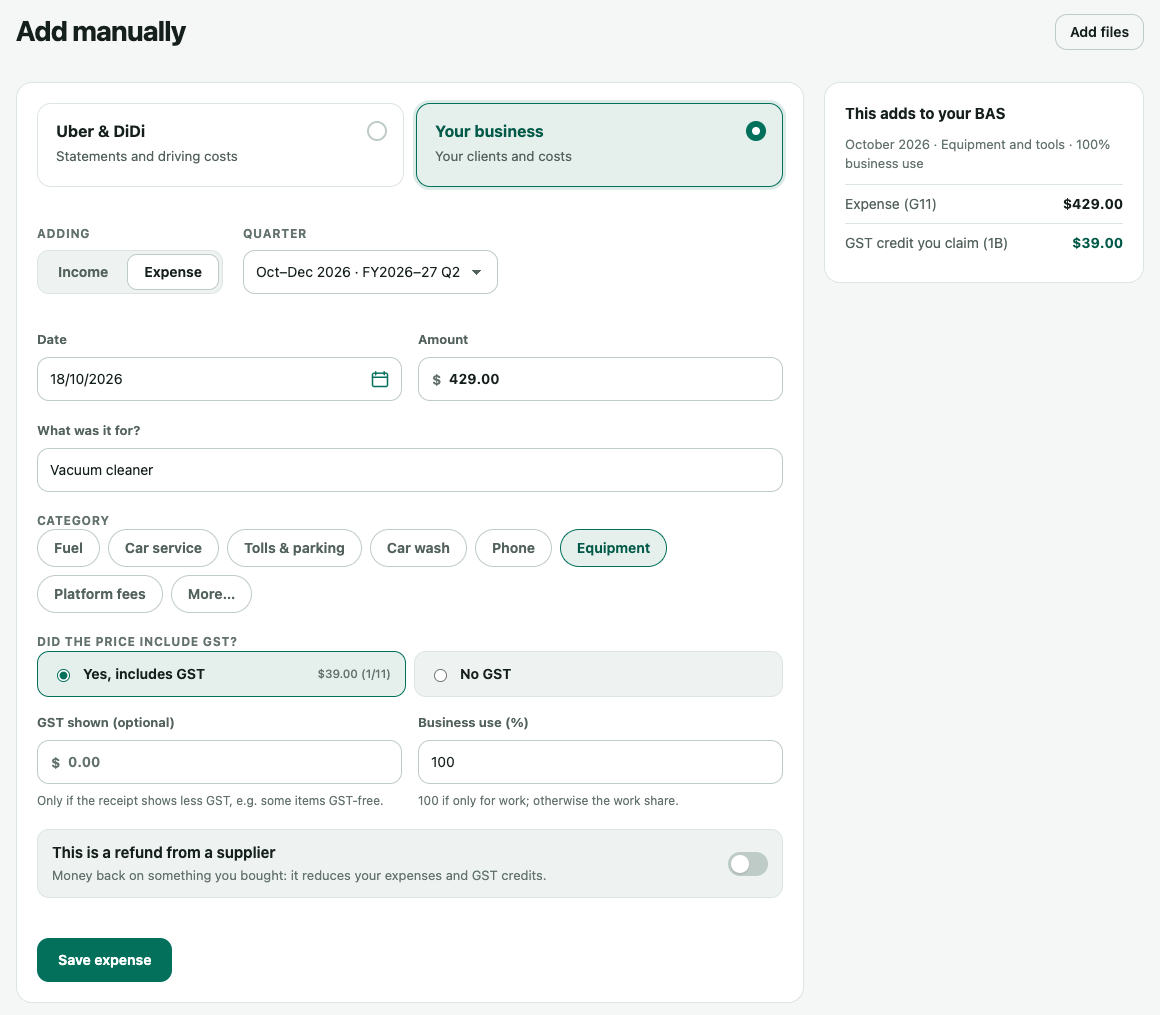
- Add manually: at the top choose Your business, then Expense. Enter the date, amount and what it was for, pick a category, answer Did the price include GST? and press Save expense.
The box beside the form shows exactly what the cost adds to your BAS before you save.
Step 5: Answer GigTics' questions
GigTics reads each file. Clear receipts and invoices are added straight away. Anything it needs you to check is listed under Needs your review, with what it needs, such as a category or your business use. Small answers are given right in the list. For the others, press Review to see the file next to what GigTics read.
When everything is right, press Confirm expense. If a file doesn't belong, press Remove document.
Step 6: No receipts? Use your bank transactions
A bank statement uploaded as a PDF can't be used for your BAS: it doesn't show the GST. Use your bank transactions in one of two ways:
- A few purchases: type them in with Add manually (Your business › Expense), as in step 4.
- Many purchases: export your transactions for the quarter as a CSV file from your internet banking and drop it on Add. Money you spent is ticked; money in is left unticked, so add your income from your invoices or with Add manually. Untick anything that wasn't for the business, press Import, then under Bank rows to finish choose what each row was for and whether the price included GST, and press Add.
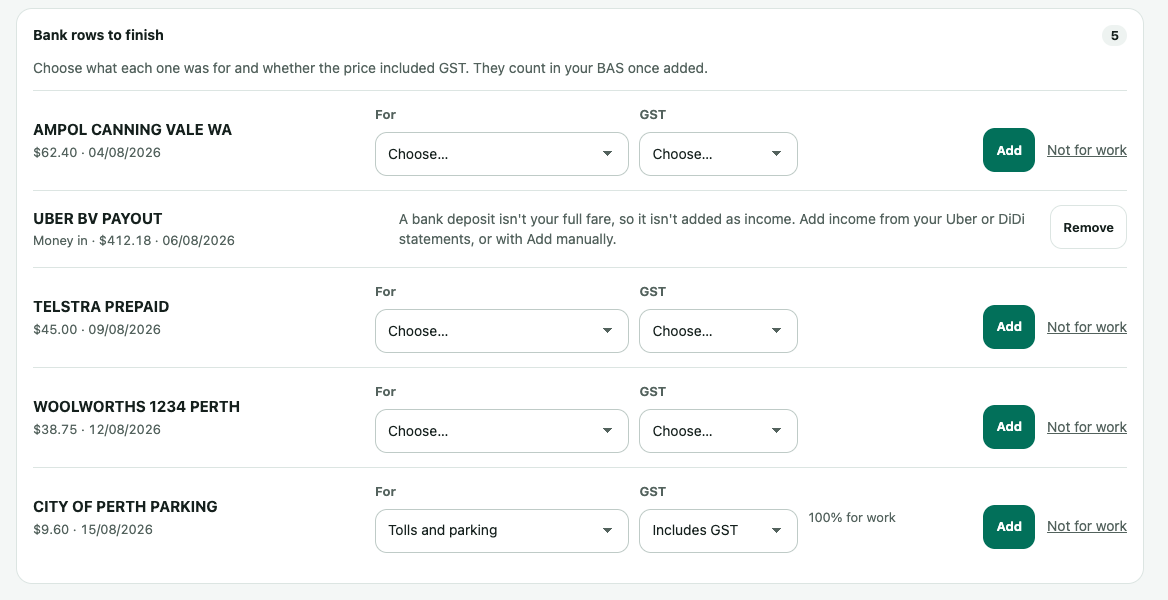
A bank line doesn't show the GST, so GigTics goes by what you choose: only count GST if the price included it.
Step 7: Check your quarter in Records
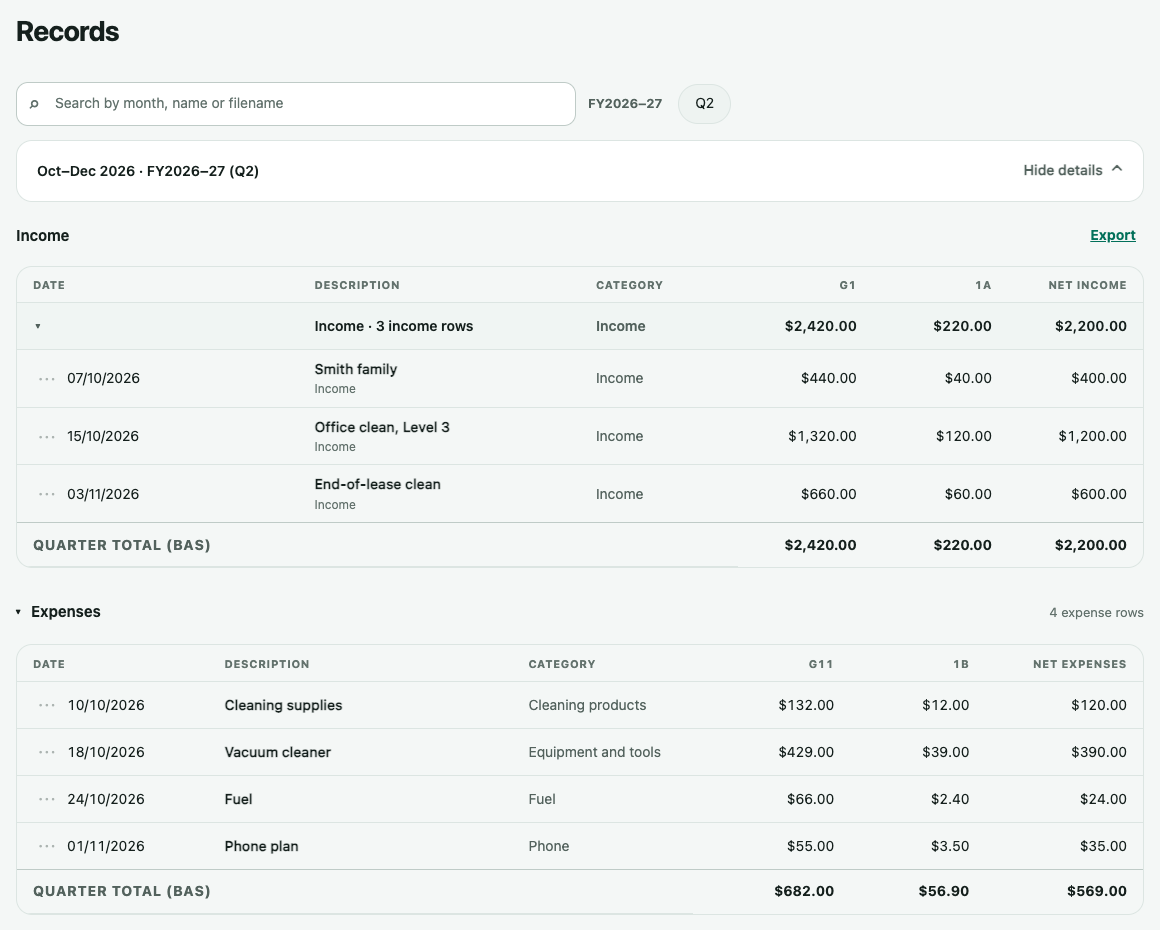
Records lists everything by quarter: your income with G1 and 1A, your costs with G11 and 1B, and the quarter totals. Use the ··· button on a row to edit or remove it. Export downloads the quarter as a CSV file to keep with your tax records.
A total shows Pending until every record in that table is finished, so you never see a half-finished figure.
Step 8: See your BAS figures, then lodge
BAS shows Total sales (G1), GST on sales (1A), GST on purchases (1B) and Net GST, the amount to pay or get back. If you see Calculate figures or Update figures, press it to bring the figures up to date.
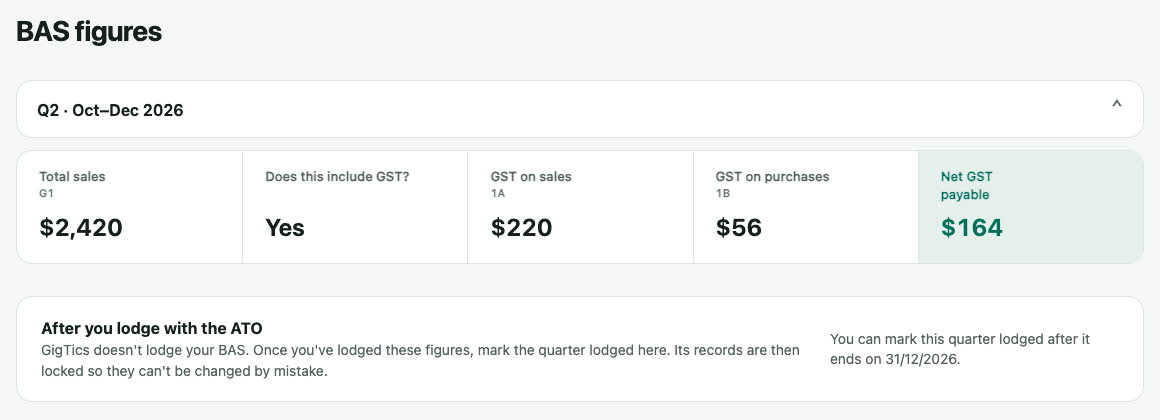
GigTics doesn't lodge or pay your BAS for you. Enter the figures in ATO Online services (or give them to your BAS agent) and lodge. Then, on the BAS page, enter the Date you lodged and press Mark as lodged. The quarter is locked, so its records can't be changed by mistake. You can do this once the quarter has ended.
Free and paid
Your first BAS is free, and no card is needed: on the BAS page, choose Use my free BAS on this quarter. For later quarters, subscribe in Plan & billing.
Need help?
Open Help in GigTics and send us a message, or email support@gigtics.au.
General information only, not tax advice. Rules can change and every situation is different: check ato.gov.au or ask a registered tax or BAS agent. Updated 18 October 2026.
More guides
- Step by stepHow to do your BAS with GigTics: a step-by-step guide for rideshare driversRead →
- UberHow to do your BAS as an Uber driver in AustraliaRead →
- DiDiHow to do your BAS as a DiDi driverRead →
- DeliveryGST and BAS for food delivery ridersRead →
- BAS basicsG1, 1A and 1B on your BAS, explained simplyRead →
- Car costsClaiming GST on fuel and car costs as a gig workerRead →